





TL;DR Summary: Instructions for using Pandas to read CSV and JSON files into dataframes highlight its efficiency in data handling. CSV files can be read directly from a URL using pd.read_csv(), while JSON files require additional steps to parse nested structures with pd.read_json().
- CSV files can be read directly from a URL using pd.read_csv().
- JSON files require additional steps to parse nested structures, using pd.read_json().
Here we show how to load CSV files and JSON files into a Pandas dataframe using Pandas. (Brand new to Pandas? Get the basics in our Pandas introduction.)
This illustrates, yet again, why Pandas is so powerful. It does all the heavy lifting of downloading a file from the internet, opening it, looping through it, parsing it, and converting it to a dataframe. And it does it in a single line of code.
The Jupyter notebook for this code is here. You will need to pip install pandas if you don't already have that.
How to read a CSV file with Python Pandas
Pandas can open a URL directly. That means you don't need to download a file to read it. Below we read a .csv file:
    import pandas as pd

url = 'https://raw.githubusercontent.com/werowe/logisticRegressionBestModel/master/KidCreative.csv'

df = pd.read_csv(url, delimiter=',')
Then look at the top of it:
df.head()
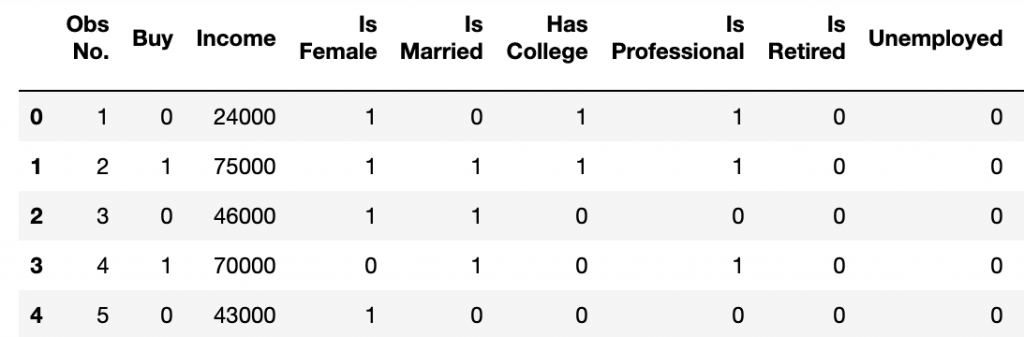
The results look like this. As you can see, it parsed the file by the delimiter and added the column names from the first row in the .csv file.
How to read a JSON file with Pandas
JSON is slightly more complicated, as the JSON is deeply nested. Pandas does not automatically unwind that for you.
Here we follow the same procedure as above, except we use pd.read_json() instead of pd.read_csv().
Notice that in this example we put the parameter lines=True because the file is in JSONP format. That means it's not a valid JSON file. Rather it is a file with multiple JSON records, one right after the other.
    import pandas as pd

url = 'https://raw.githubusercontent.com/werowe/logisticRegressionBestModel/master/ct1.json'

dfct=pd.read_json(url,lines=True)
Now look at the dataframe:
dfct.head()
Results in:
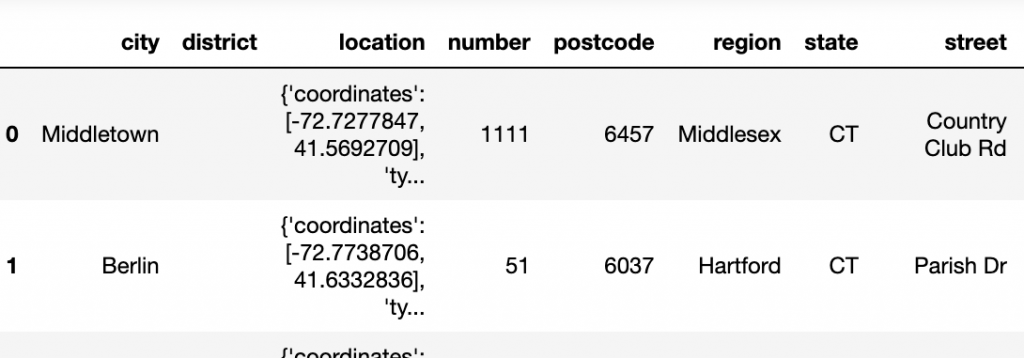
Notice that Pandas did not unwind the location JSON object. The input JSON looks like this:
    {

            "state": "CT",
            "postcode": "06037",
            "street": "Parish Dr",
            "district": "",
            "unit": "",
            "location": {
                        "type": "Point",
                        "coordinates": [-72.7738706, 41.6332836]
            },
            "region": "Hartford",
            "number": "51",
            "city": "Berlin"
}
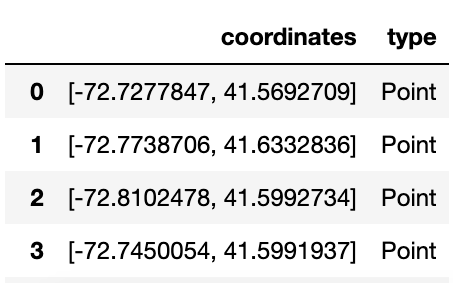
So, we need an additional step. We turn the elements in location into list and then construct a DataFrame from that
pd.DataFrame(list(dfct['location']))
Results in a new dataframe with coordinate and type:
Related reading
Pandas Guide
- Pandas Introduction & Tutorials for Beginners
- Pandas: How To Read CSV & JSON Files
- How To Create a Pandas Dataframe from a Dictionary
- How To Group, Concatenate & Merge Data in Pandas
- Pandas Data Types
- Handling Missing Data in Pandas: NaN Values Explained
- NumPy Introduction with Examples
- Using StringIO to Read Delimited Text Files into NumPy
- Using the NumPy Bincount Statistical Function
- Top NumPy Statistical Functions & Distributions
These postings are my own and do not necessarily represent BMC's position, strategies, or opinion.